Git Fundamentals
It is not uncommon to meet fellow developers who are able to use git, we are ones ourselves. Most of us are able to commit, push, resolve conflicts, etc. However, how many would be still comfortable to use it when things deviate from a normal workflow? E.g., hotfix, recover deleted branch, fixing our local branch if the remote is squashed, detached HEAD, etc.
These are all symptoms of learning git usage through surface level commands without understanding git itself. I was in the same boat, and many developers I spoke to share the same experience, especially the new ones. Hopefully, this article will give us an improved understanding about git to be able to leverage it more.
Understanding #1: Everything Is “Just” a Commit
The first thing we have to understand is that everything in git is just a commit. Forget about branches, forget about tags, forget about everything first.
When we init a repository, we have zero commits. Once we create our first commit, we have 1 commit in the repository. We can then make another commit on top of the previous one.
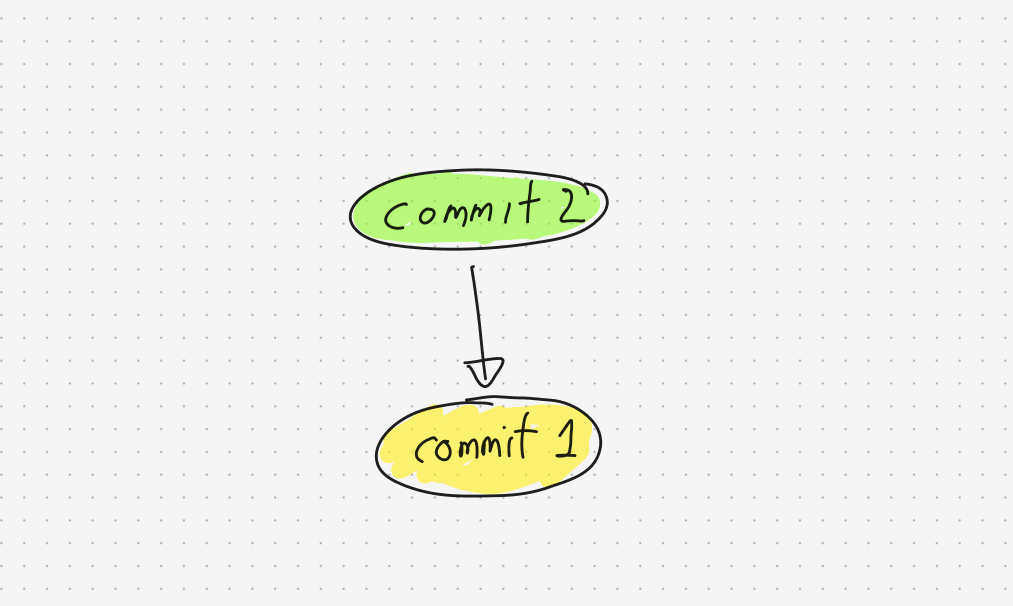
But what is a commit? A commit is simply a set of changes (with snapshots) happening to a bunch of files with some metadata. The metadata includes the commit message, the author, and more importantly, the previous commits of this commit.
The previous commit is where the magic happens. By referring/comparing the previous commit, we build a tree-like structure for all changes happening in the repository, with each commit referring to the previous commit. Suddenly, we have a history of the whole repository (a.k.a. git log).
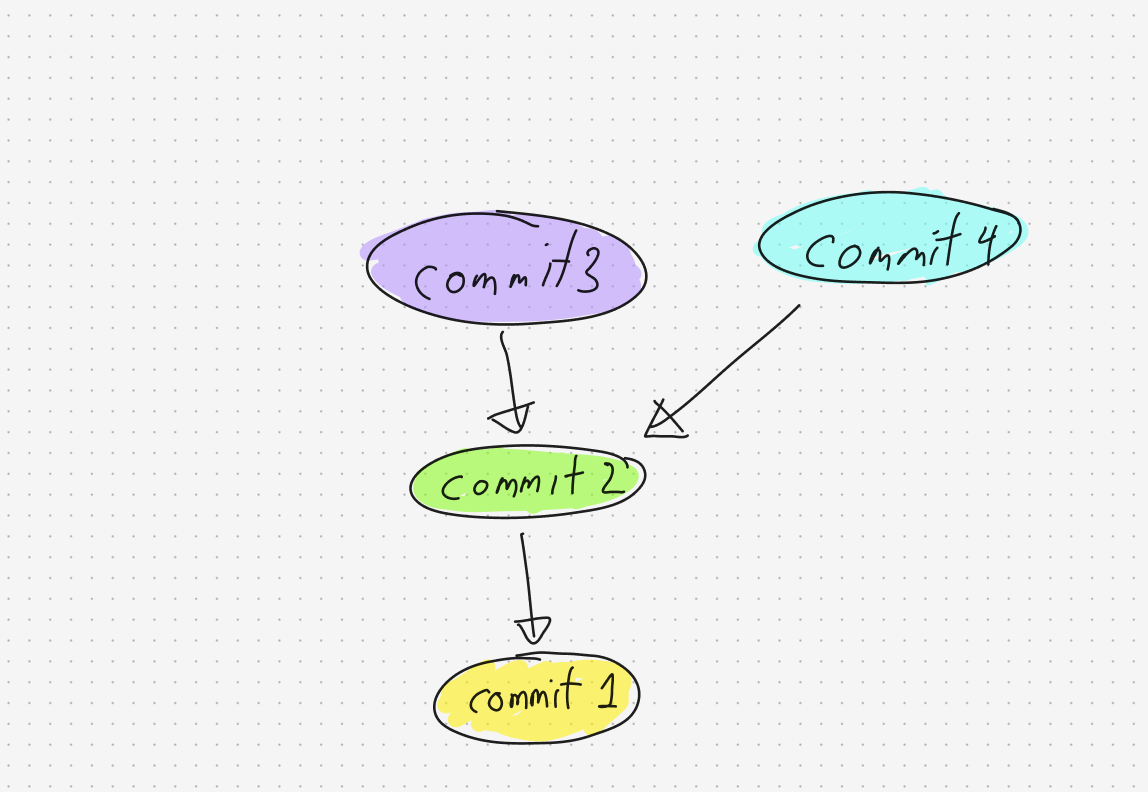
Branches Are Not “Real”
Let’s take it a step further: What is a branch? Well, if you take any of the commits you have in a tree and give them another name. It becomes a branch.
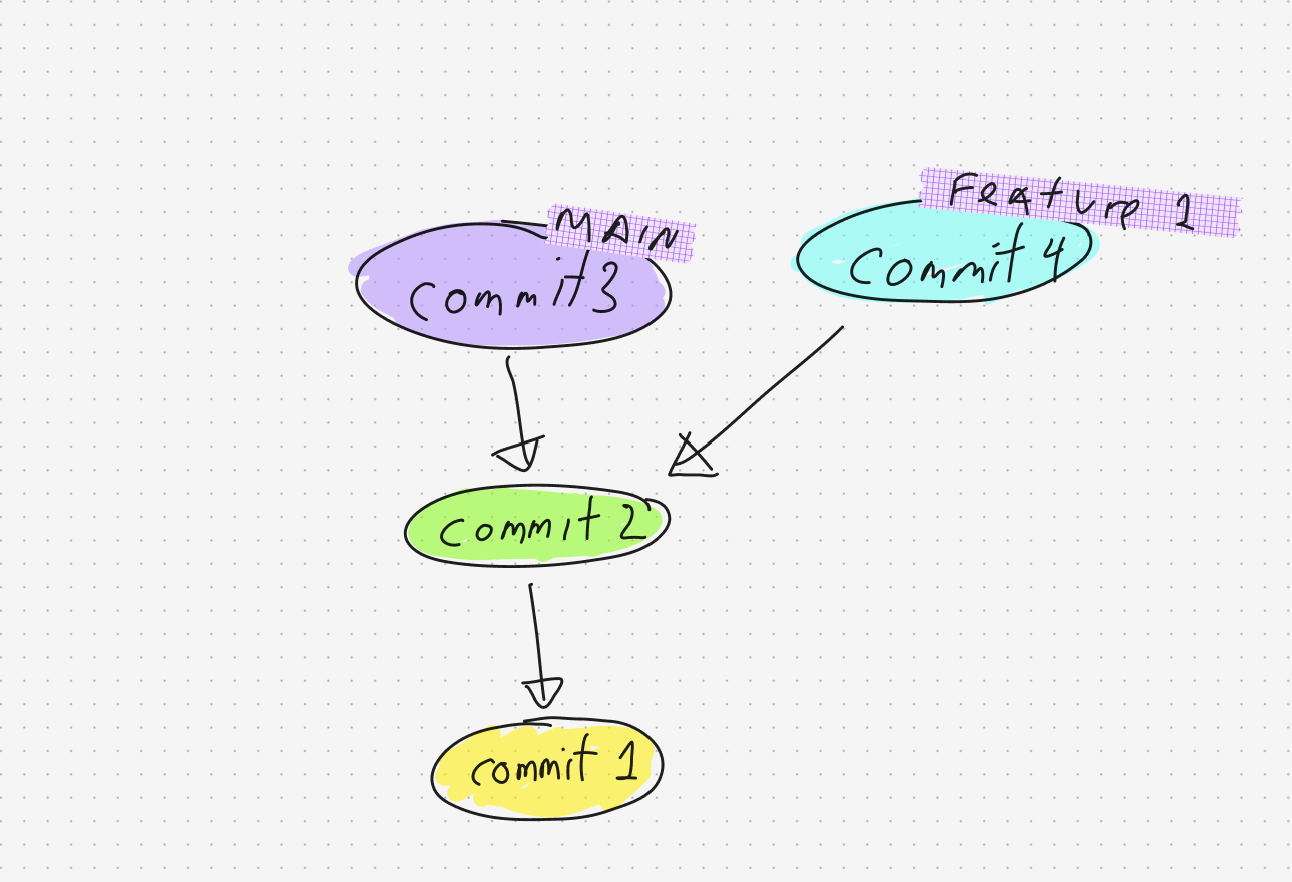
So in the end, a branch is not “real”. It’s just a reference to a commit id. That’s why branches are stored under the refs directory internally within the .git folder (.git/refs/heads/main), and the content of the file is just the commit id. When we create a new commit, the commit reference of the file is just going to be updated. Same principle for tags.
When we hear about “HEAD” in a git branch, it just merely means the commit id the branch is pointing to. In a branch, we don’t see commits beyond “HEAD” as it’s not relevant for us, and hence the name. When we run git log in a branch, it shows the HEAD commit and then traverses down the tree, displaying all previous commits.
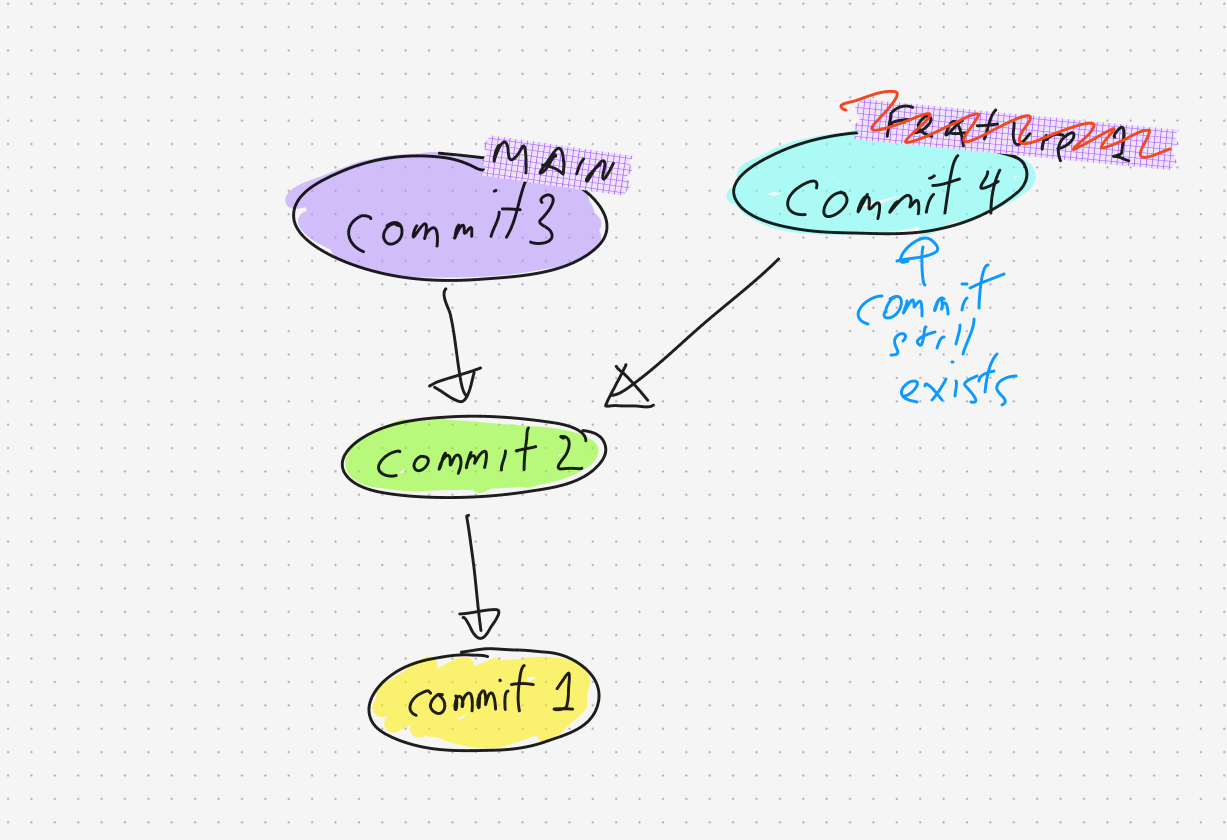
This is why when we delete a branch, the commits are not lost. You can recreate another branch (or the same one), which points to the commit id. All we need is the commit id. When we don’t have it saved somewhere, git tools such as reflog can help us find these commits as it shows the commit ids of where the previous HEAD pointed to.
“Moving” Commits
Before we move on to the next fundamental, we have to talk a bit about how these commits “move” because we will need them later. You can stick with me here or just jump into the next section.
When we squash commits, we combine the changes from multiple commits into a single commit and move the pointer (HEAD) over there.
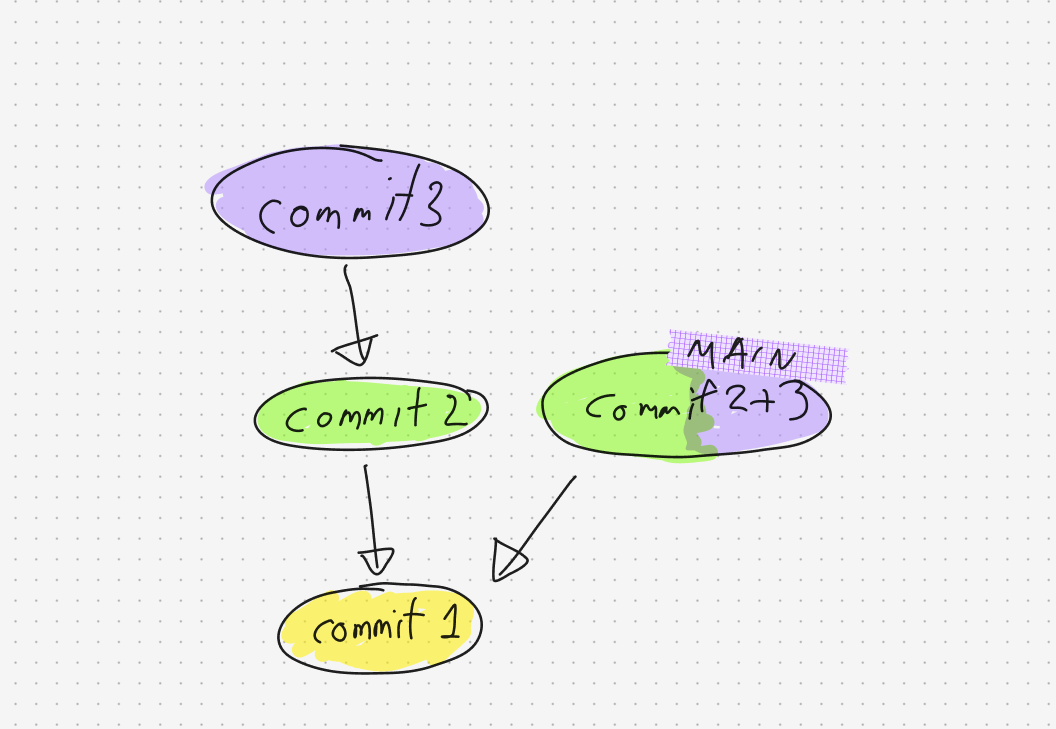
When we cherry-pick commits, we take changes from any other commit, apply a new metadata, and put it on top of the current commit.
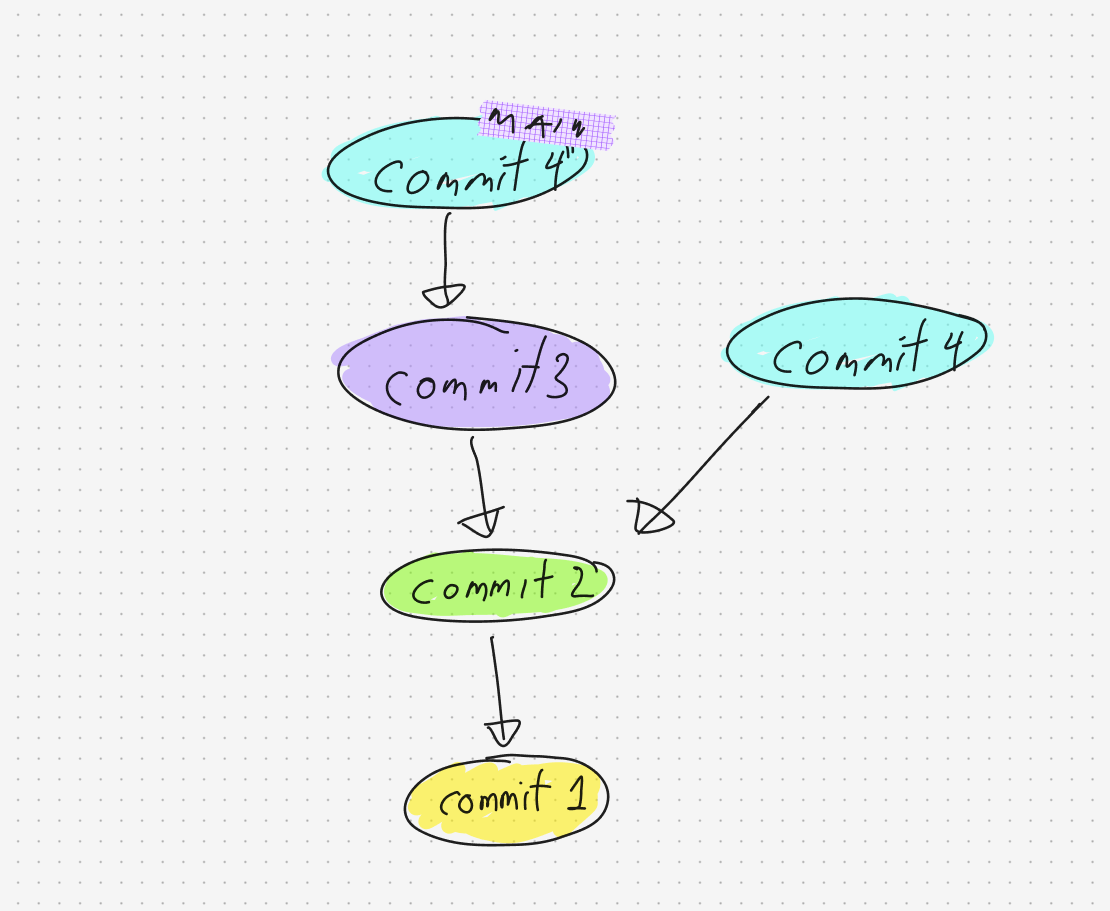
When we merge two branches, we create a new single commit that refers to two previous commits. This is the reason why the history is very confusing to look at for this type of merge as many tools just mix in the time in a single timeline. The better tool will visualize it with easy-to-understand parallel lines.
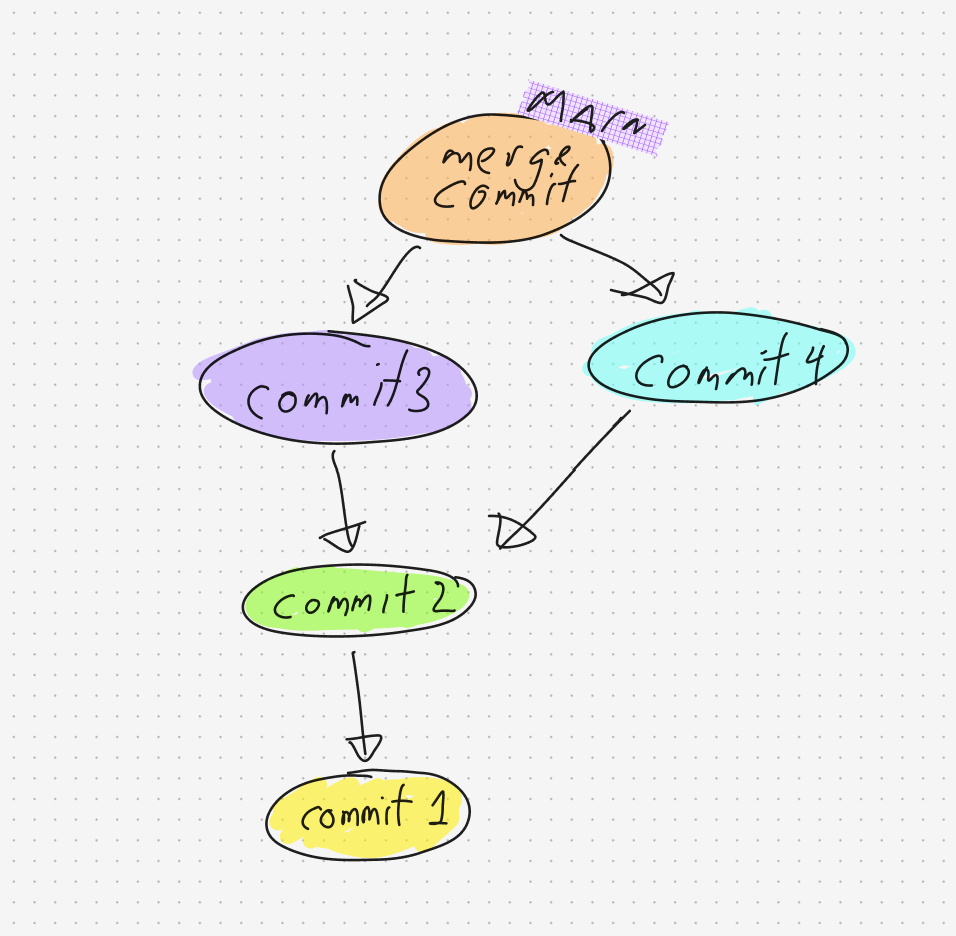
In the case of a rebase, we are essentially cherry-picking all our current commits on top of other commits. It’s technically similar to cherry-picking but involves multiple commits. I can even use the same image as cherry-picking here as it involves only a single commit.
In fast-forward merge, the two branches have the same root, so the other branch commit ref is just “fast forwarded” to the commits on top of that commit. There is no actual change other than the branch HEAD being updated.
Lastly, merge conflicts are just what happens when the commit can’t be attached to another commit. As mentioned in the beginning, a commit stores also changes to files. These changes also work by using a tree structure. When it is not able to match with the previous changes tree to the new ones in the commit, git will ask the user to fix the “conflicts”.
Understanding #2: There Are “Parallel” Worlds
git is a “distributed” version control system. What does “distributed” mean here? It means everyone stores a copy of all the commits locally.
Ever had the issue that checkout of a repository takes so long? That is because the entire history of commits is being downloaded into your hard drive. This is why committing huge files is frowned upon. On the other hand, you can work on everything locally, and it will be very fast.
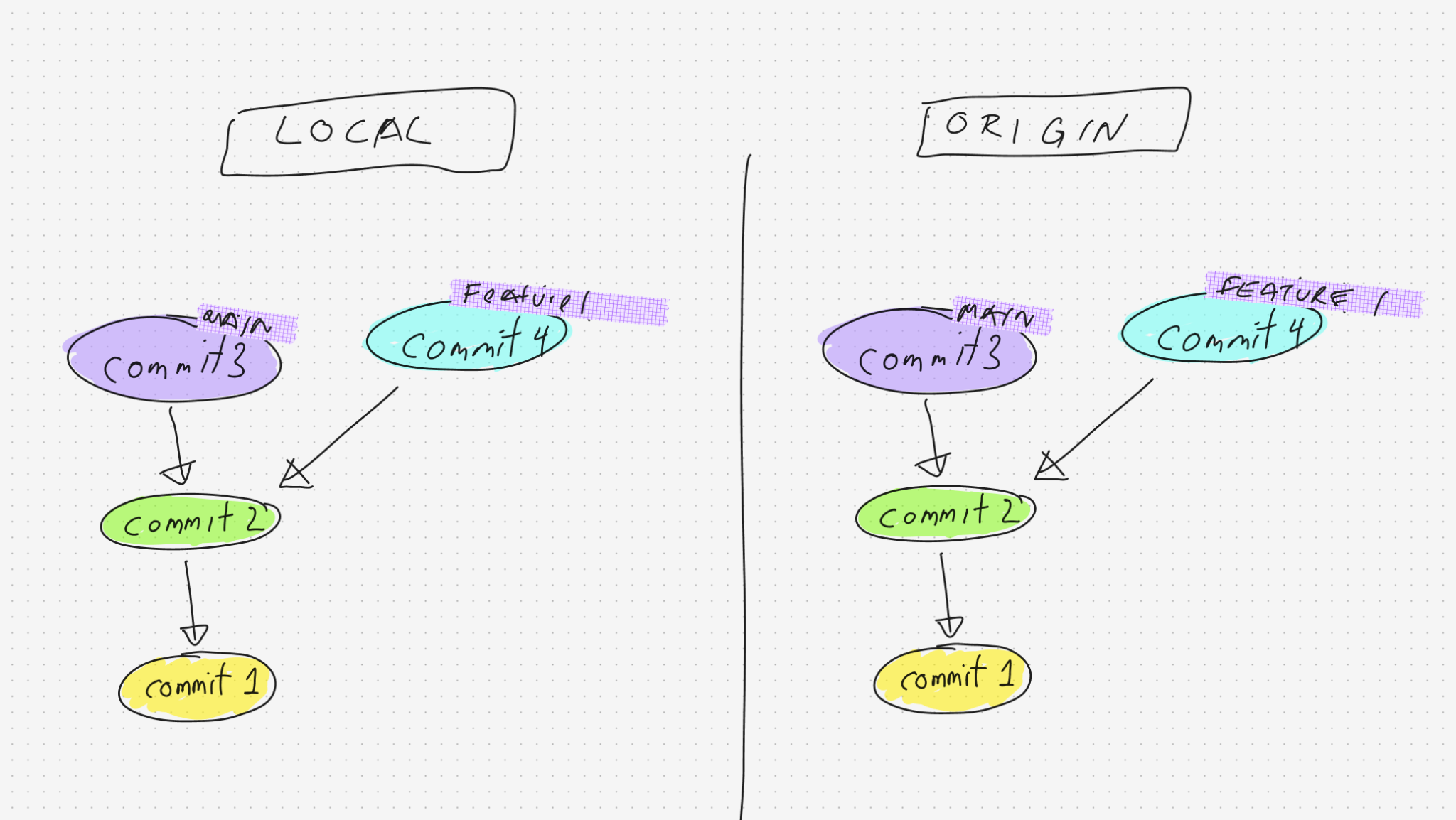
Now come the “parallel” worlds. Since you have a copy of the “world” locally, others have it as well. These others could be your fellow developers. It could also be a server, such as GitHub, GitLab, or Bitbucket. These copies are called “remote”.
Now, your fellow developers are of little importance here because you do not synchronize your git repository “world” directly with theirs. However, you do synchronize it with the server you use together. The server is typically called the “origin” (hence “remote/origin”), but if you use multiple servers, you might call it different names. A remote can also be another repository or a fork.
When we push to the origin or any other remote, we are actually just pushing the commits and updating the references (which commit a branch points to).
Diverging Parallel Worlds
As other people can also push to the origin, it is common to have a situation where our local copy of the repository differs from the remote one.
Let’s take the example of us doing a commit locally, but another developer has pushed commit X to origin and updated the branch we are working on to point to this new commit.
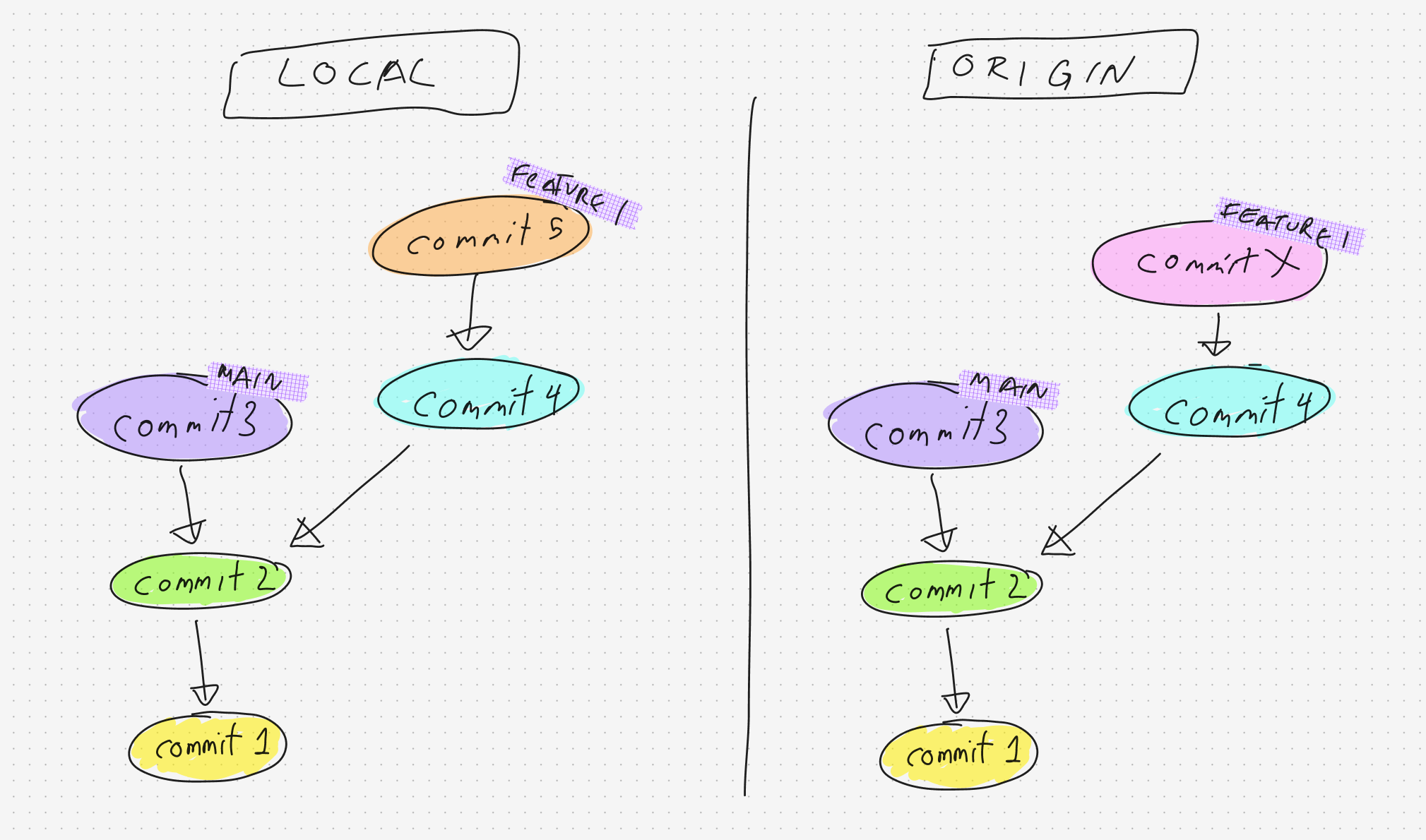
Now, we have to resolve the differences. The easiest way is to force push. After uploading the new commits, the reference to the branch in remote will be forcefully updated to the new commit.
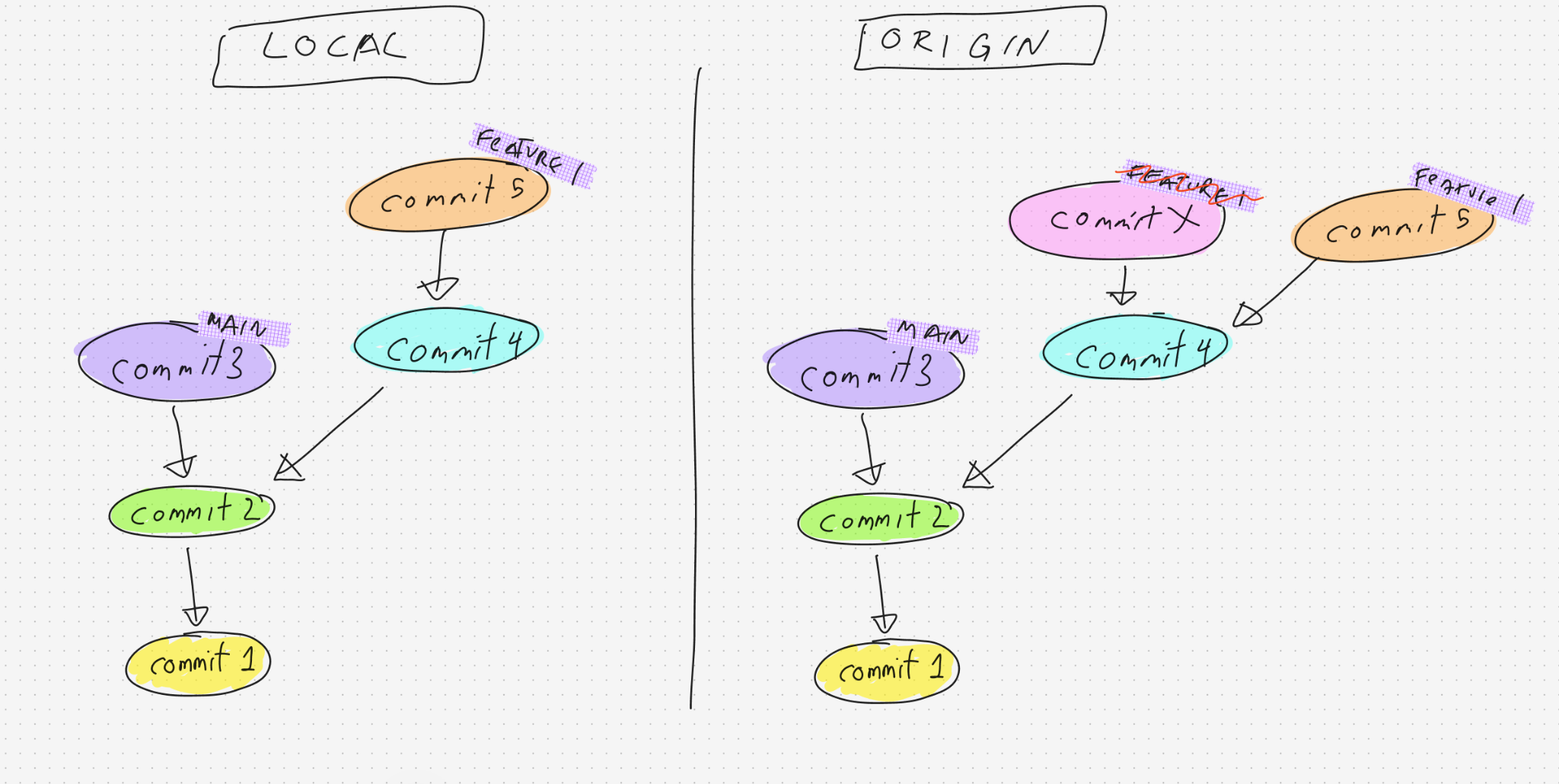
Typically, a remote will not allow this. Pushing commits is generally non-destructive, but updating the reference is. In this case, we need to satisfy the server’s requirements. For example, the reference of the branch must never move back (a.k.a. no force push). So we must first incorporate the “truth” of the remote “world” into our local “world”.
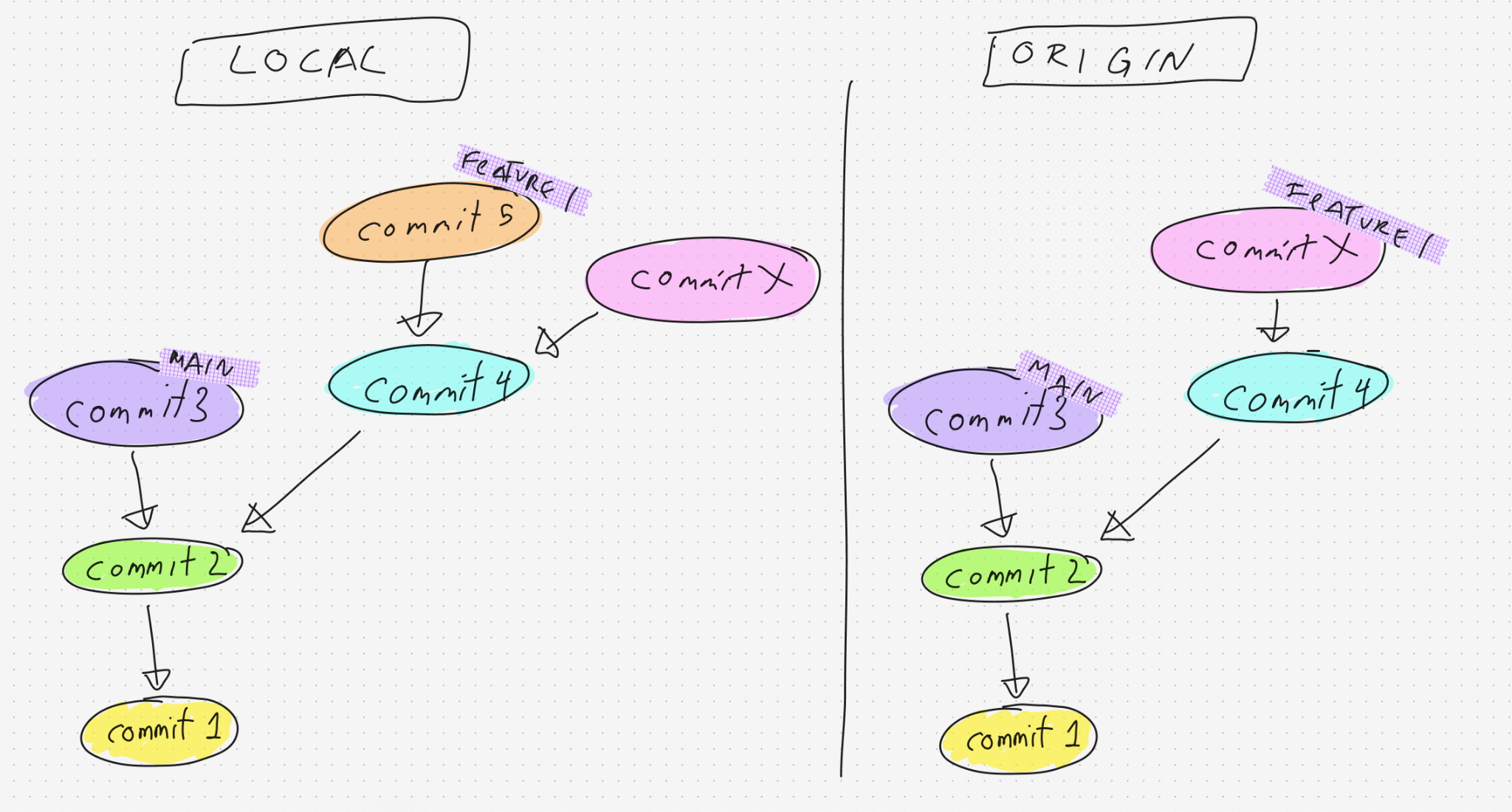
Now we have a copy of the commits from remote, but what happens to our commits now? As previously mentioned, there are several ways to resolve “merges”. Either by a merge commit or a rebase. Let’s now take the rebase approach, which is effectively a cherry-pick and moving the reference commit id of the branch.
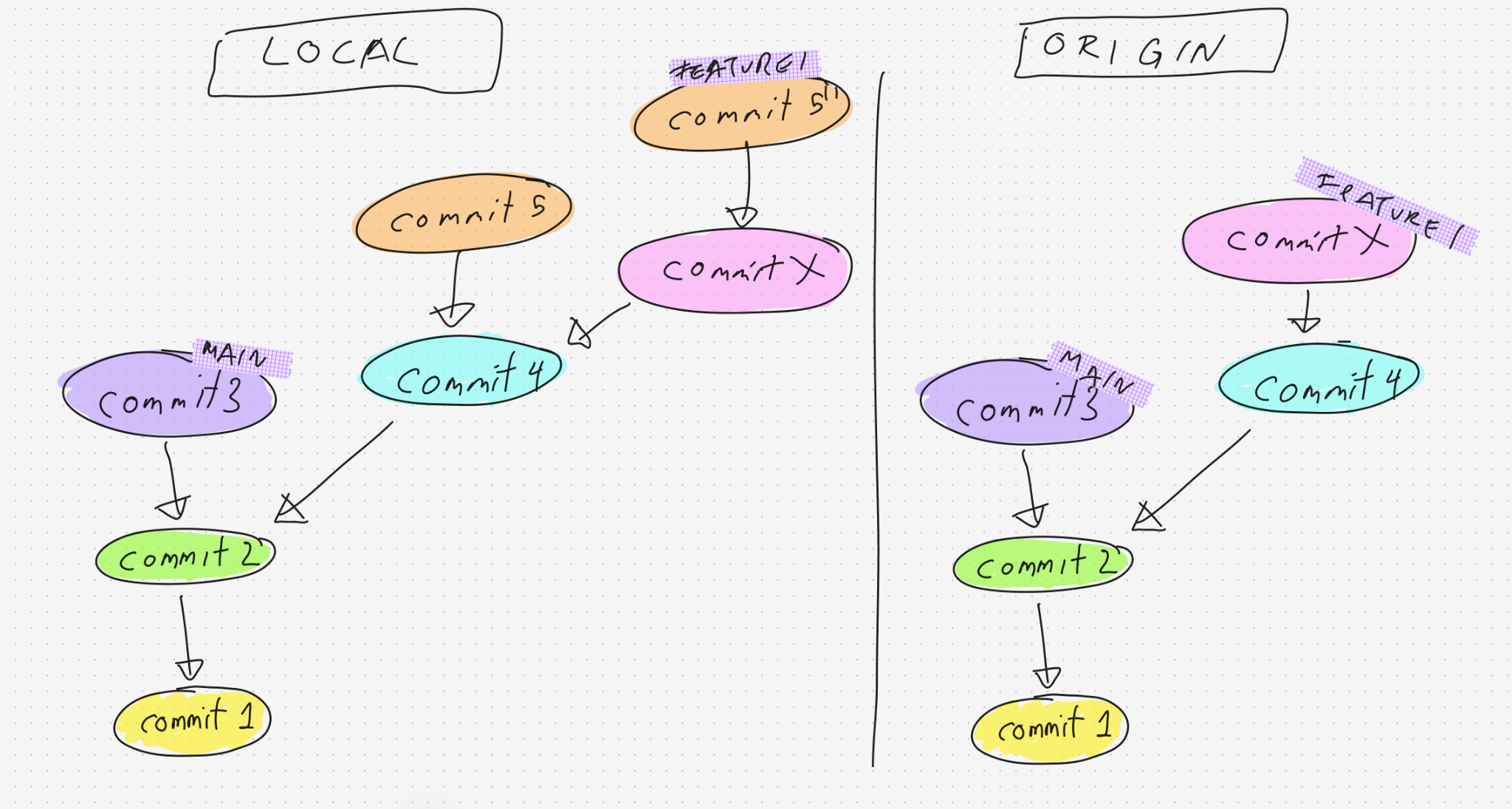
With this new state, we can push our commits to the remote. Since the branch reference is updated to something further, the server will not complain anymore and our push will be accepted.
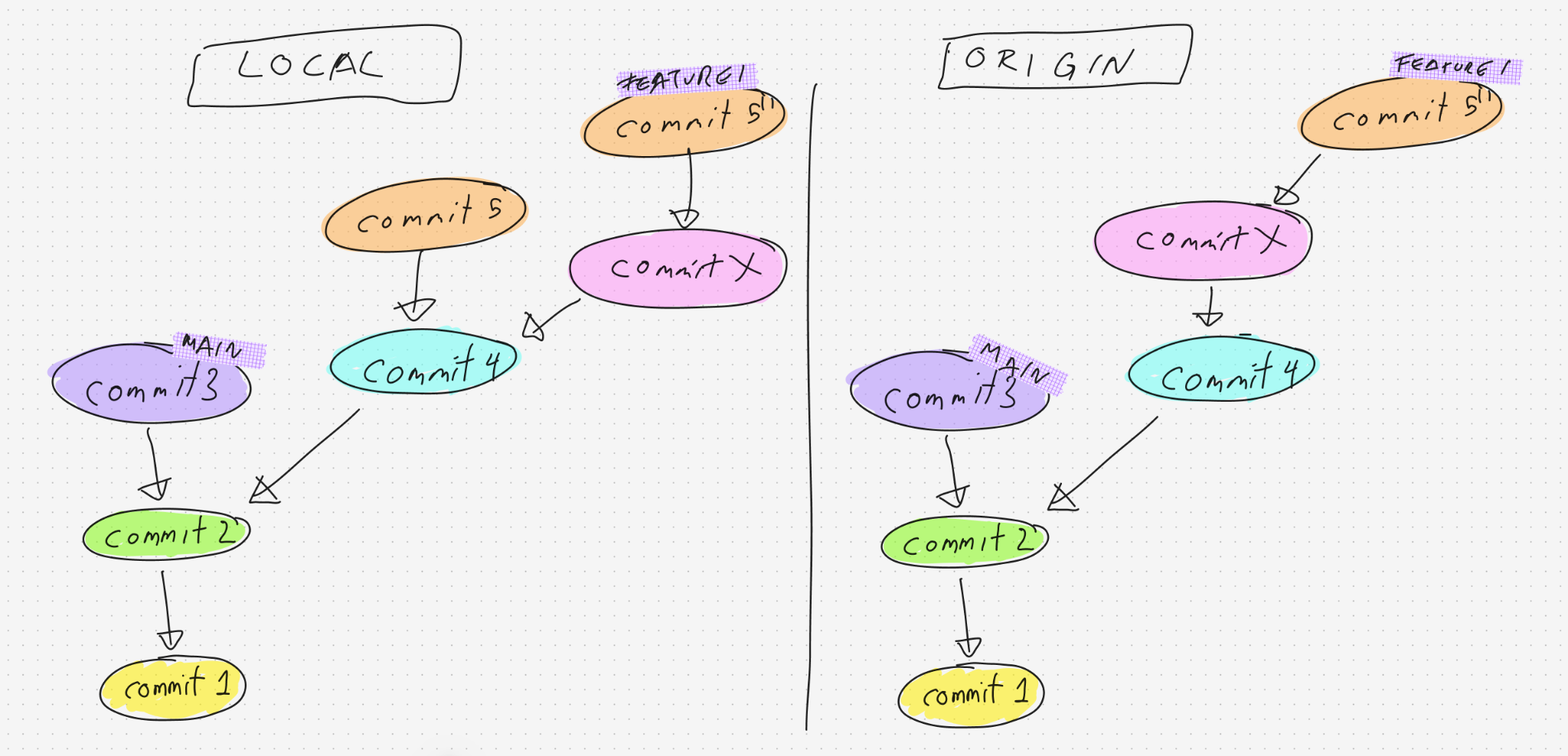
In the real world, the branches will have 10 or more commits, of which half of them might be merge commits. It means it has joined back to another branch around 5 times, leading to a very confusing history. This is why git rebase is generally preferred over git merge.
However, git rebase also has its drawbacks. When you have 10 commits, and you rebase it, you might have to fix conflicts 10 times. I have seen developers giving up and manually copying files to another directory and back. When we understand how these things work, there are many workarounds; one of them, for example, is squashing our commits before rebasing it.
Example Case
Let’s try it with an example case (randomly selected). Assume we have a branch with two commits, and another developer is actively working on it.
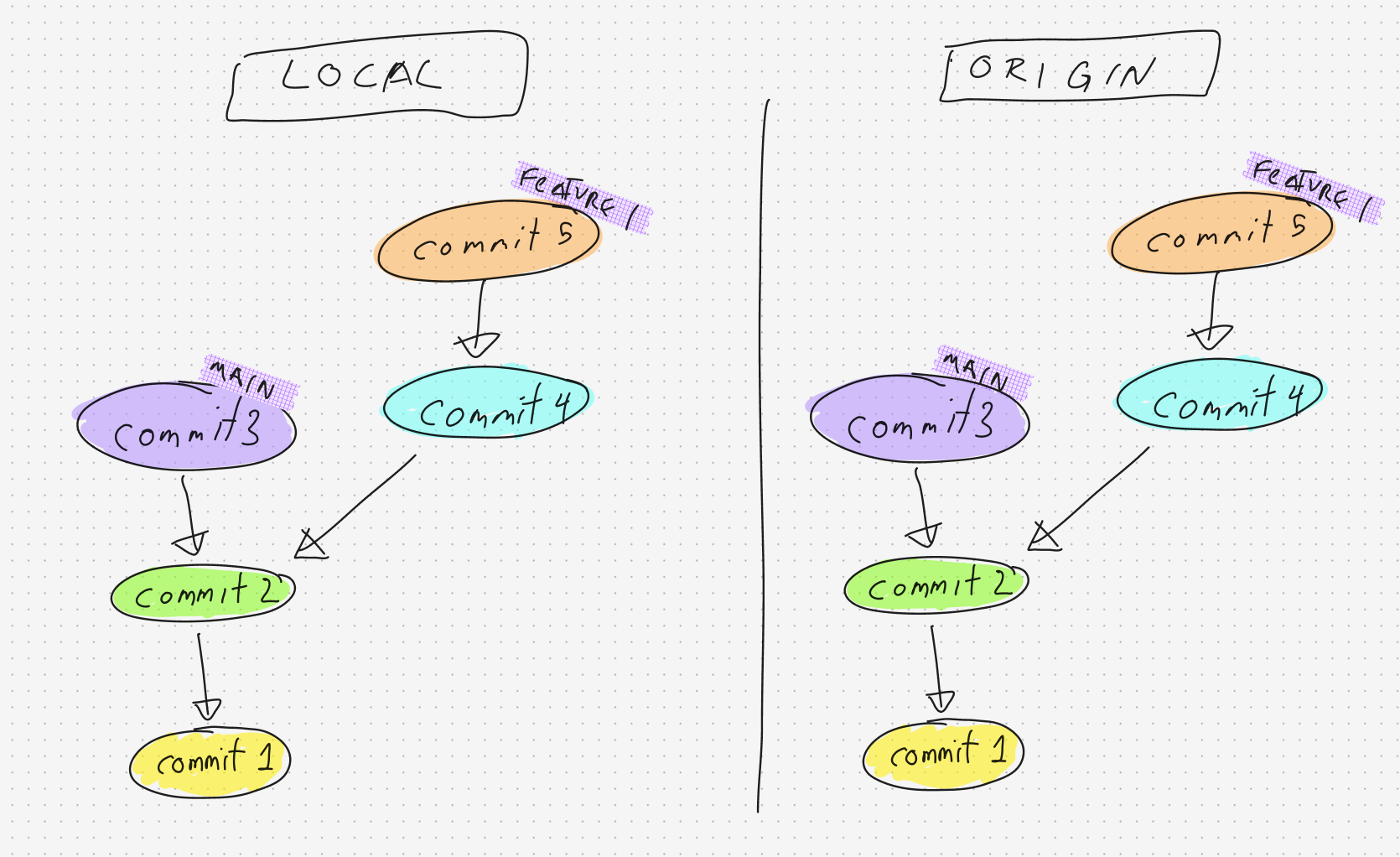
Since our feature requires some work the developer has already done, we branched off our branch from there and added our own commits.
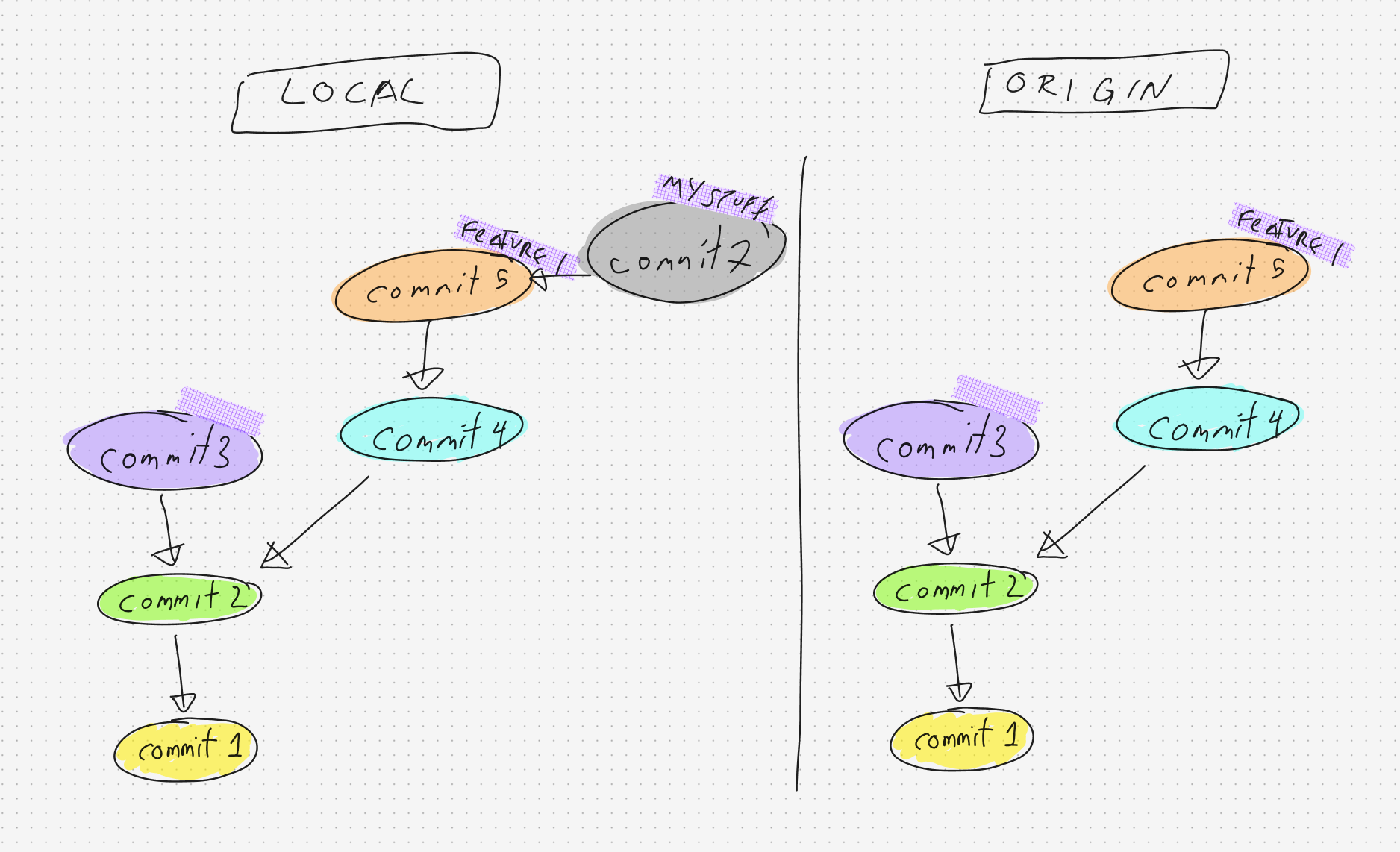
The developer then adds another commit, which we also need to incorporate. However, –for whatever reason–, the developer squashed all the commits and force pushed to the branch we based our branch on.
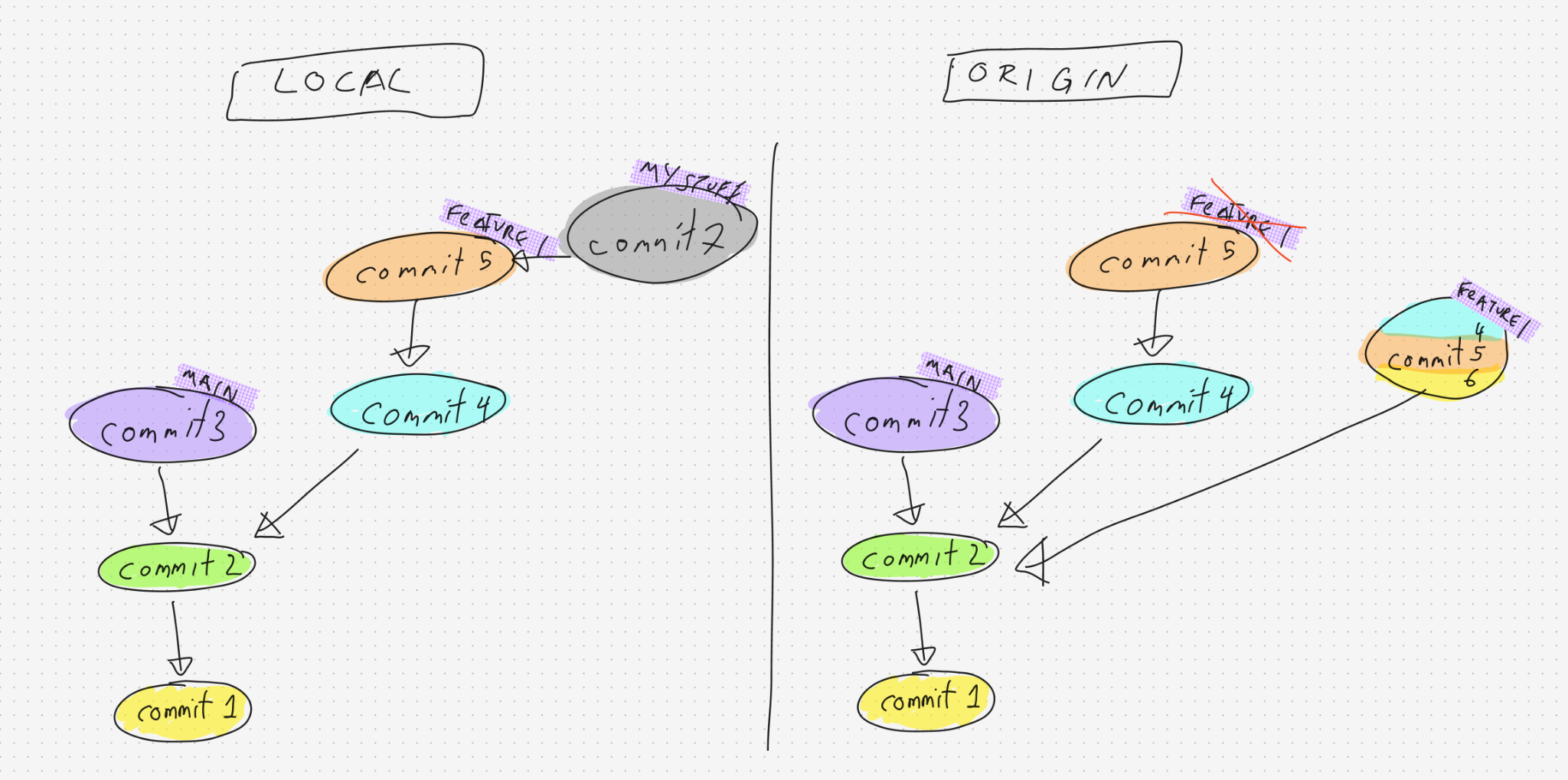
Now, when we update our branch from that branch in the remote, –via rebase for example–, we will move our commit onto the new squashed commit. However, since the commits were squashed, it is effectively a different commit. The base between the two branches moves further down the tree. This will lead to the unsquashed commits in our branch also getting to be moved and reapplied on top of the squashed commits, which effectively contain the same code. Of course, this will lead to weird and confusing conflict resolutions.
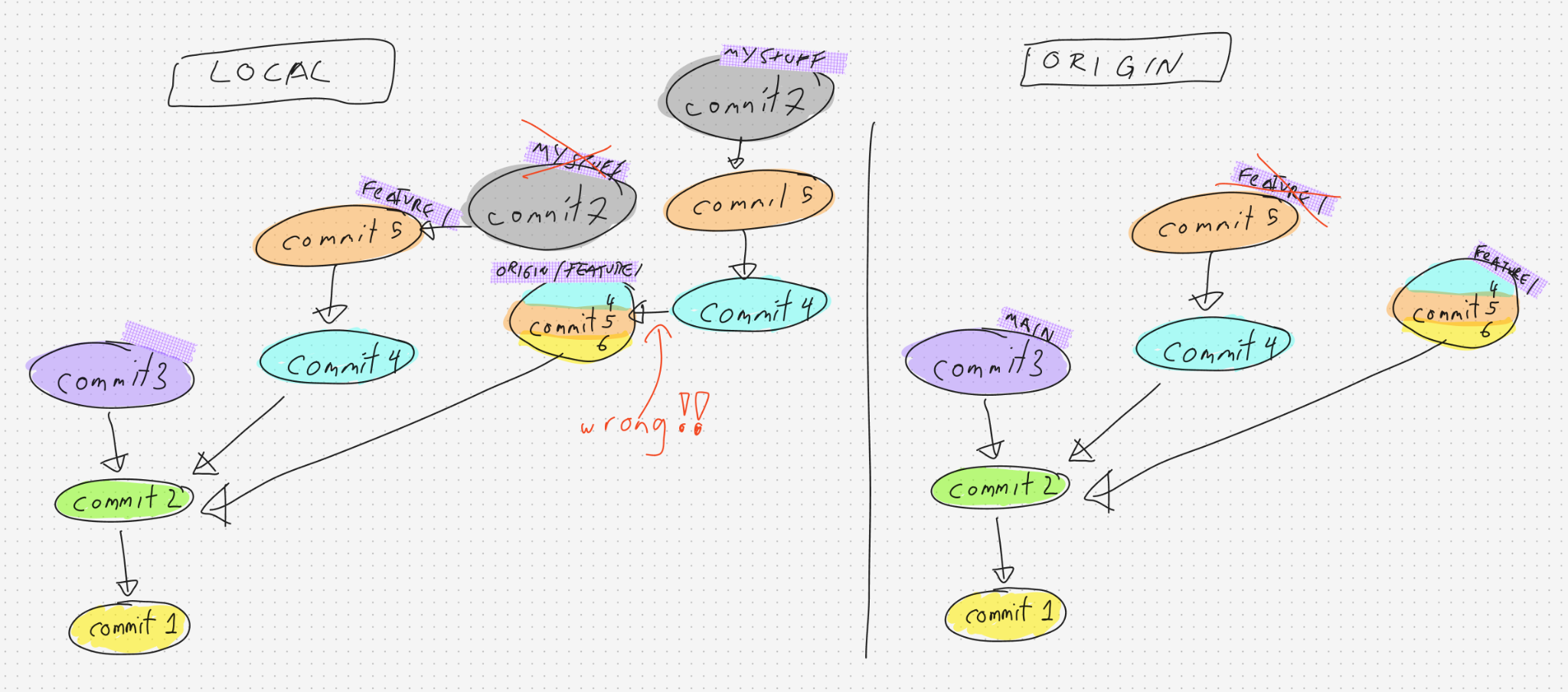
So, what should we do? The solution is rather simple, we should first reset our branch to the new base, because that is what we wanted. To base our branch from that branch. This can be done via git reset --hard commit456-hash for example, which will force update the reference of our branch to that commit.
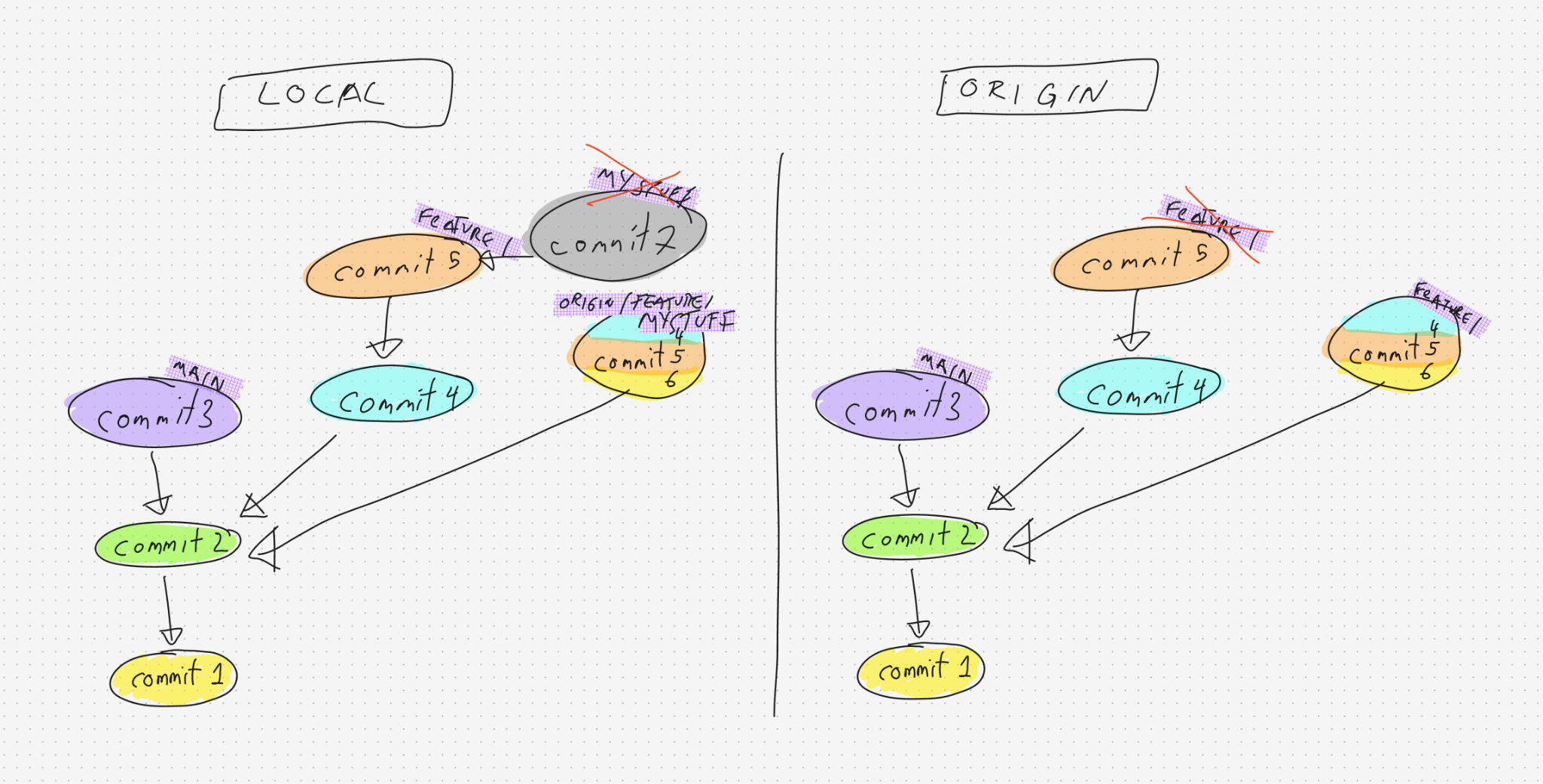
Afterward, we only need to cherry-pick our commits on top. We take our old commit id and cherry-pick it with git cherry-pick commit7-hash, and the problem is solved.
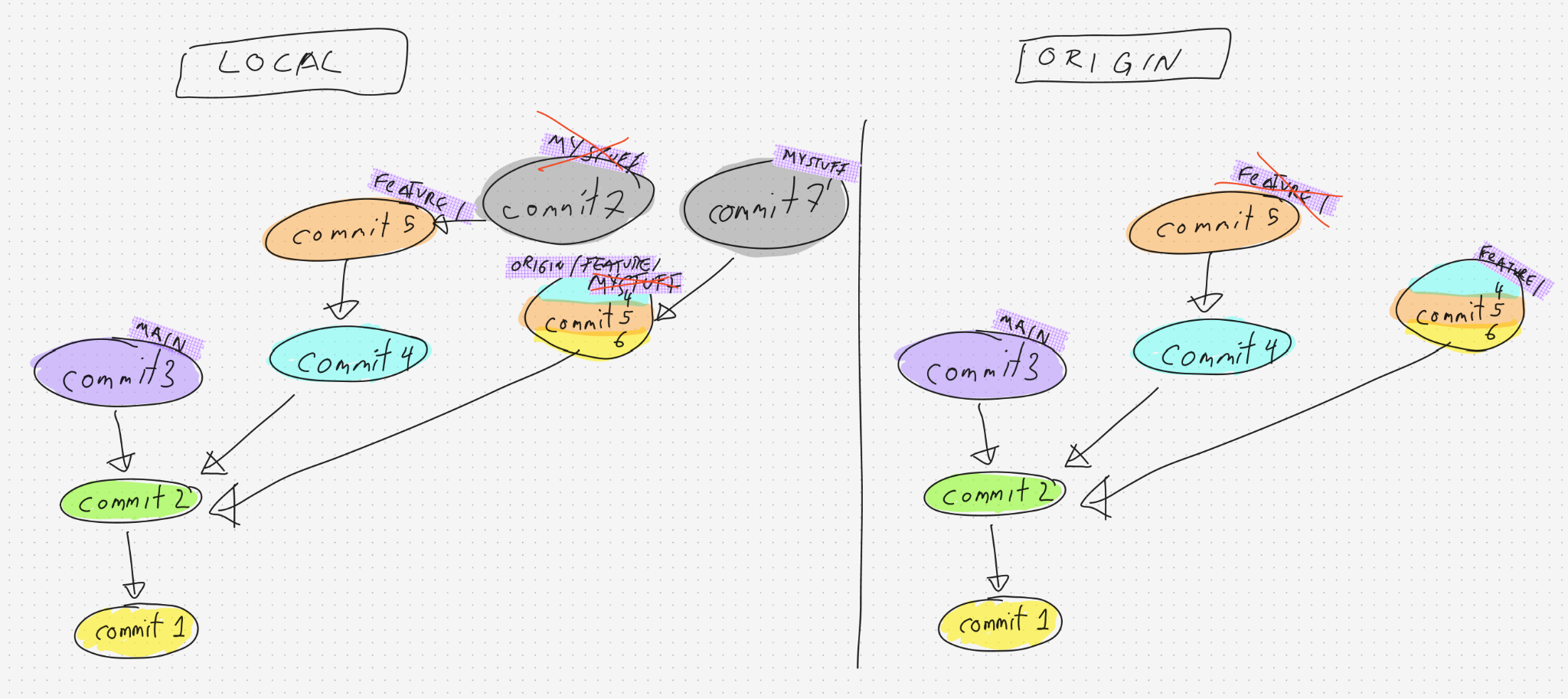
There is also the command called git rebase --onto <new-base> <old-base> <branch> which can be used to achieve the same result, which does the same thing as the cherry-picking above. git rebase --onto commit456-hash commit5-hash your-branch should then achieve the same effect.
Understanding #3: Diffs are Fake
This one will probably not change how you will use git, but it is important to understand regardless. We emphasized a lot in the previous section about how a commit stores what has changed, but git actually does not store any diffs or changes. Instead, it’s storing snapshots of files. Everytime you commit a file, a new version as the file is stored as a snapshot. These snapshots are stored as something called “objects” in git. If you commit a file 10 times, then there will be 10 objects or snapshots of the file.
Besides the objects that contain the blob or snapshots of each file, we have something called tree/subtree, which will reference one or more of the objects. These trees are then hashed as well as an ID. A commit then contains a tree/multiple subtrees. In the end, this is what a commit “changes” will look like.
Commit 1 (hash: c101)
└── Root Tree (hash: r111)
    ├── Subtree "docs" (hash: t999)
    │   └── Blob "README.md" (hash: b101)  ◄── File 1
    └── Subtree "src" (hash: t202_v1)
        ├── Blob "styles.css" (hash: b203) ◄── File 2
        └── Blob "app.js" (hash: b202)     ◄── File 3
And when you have then the second commit, it is actually a standalone tree, just with some differences.
Commit 2 (hash: c102)
└── Root Tree (hash: r222)                 ◄── NEW root tree
    ├── Subtree "docs" (hash: t999)        ◄── REUSED exact subtree pointer from Commit 1
    │   └── Blob "README.md" (hash: b101)
    └── Subtree "src" (hash: t202_v2)      ◄── NEW subtree object
        ├── Blob "styles.css" (hash: b203) ◄── REUSED exact blob pointer from Commit 1
        └── Blob "app.js" (hash: b505)     ◄── NEW blob object for modified content
So yes, commits are actually standalone and are just trees. These are the reason why we can magically create an orphan commit and check out to it from nowhere as long as all the objects are still available. This is also the reason why git is quite fast, because it has the snapshot of everything and does not have to calculate any diffs on traversing.
BUT as mentioned before, each commit typically has a parent commit, and the diffs are created on runtime by git, for e.g., a cherry-pick.
When we do git pull and push, the objects are the heavy part of the transfer. This is why sometimes when you commit large files and delete the branches, the repositories might not necessarily become smaller unless there is a garbage collection of unreachable objects using git gc or git prune.
Hopefully, this article is able to provide some insight into the git internals and helps you develop a mental model when we navigate all the commits.